
If you are running an online store using WordPress, I’m pretty sure it must be using WooCommerce. WooCommerce powers most of the eCommerce sites that are built with WordPress nowadays. WooCommcerce is free, feature-rich, and highly customizable. No two WooCommcerce stores can look and work similarly with its customizability and ecosystem.
There are so many plugins or extensions, as popularly knows by WooCommcer users that can help you improve the functionality of your online shop. If you are interested, you can check out my list of best WooCommerce plugins that can boost your sales.
However, in this post, I will show you how you can add enhanced eCommerce tracking support for WooCommerce. This article is aimed at people who are already running an online store on WordPress using WooCommcerce. By following this article, you will be able to implement enhanced eCommerce tracking for WooCommcerce and track your user’s behavior, products performance, etc.
How enhanced eCommerce tracking can help you
Using enhanced eCommerce tracking, you can find ways to –
- Increase sales
- Improve your shop
- Find the best selling products
- Find products which aren’t popular
- Discover pages which need optimization
Traditional eCommerce vs enhanced eCommerce tracking
Like a regular website owner, you might already be using the traditional Google Analytics code to track your website visitors. But that is not enough for eCommerce websites. Just knowing your top pages, traffic source, and bounce rate are not enough for optimizing an online store. To get all the actionable data from your site, you might want to use enhanced eCommerce tracking.
Using traditional eCommerce tracking, you can only track the transactions made on your site and the associated revenue from it. But when you are using enhanced eCommerce tracking, you can track how your customer interacts with the products on your site. This information includes –
- Product impressions
- Product clicks
- Product details viewed
- Products added to cart
- Checking out
- Transactions
- Refunds
This is pretty much more than what the traditional eCommerce tracking offers. With the help of all this data, you can optimize your WooCommerce store at every step for conversion. This could lead to more traffic and revenue in the long run.
On your Google Analytics property’s settings page, you could find a dedicated option for enabling eCommerce tracking. Enabling it will give you more accurate data from your store and complete insights into the customers shopping behavior.
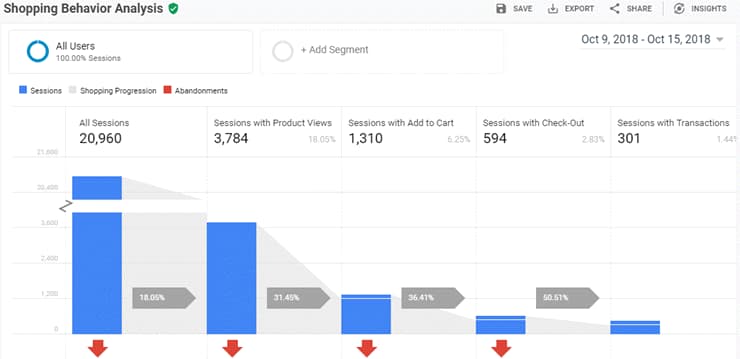
Have a look at the above shopping behavior analysis report. In the above report, you can see that there were 594 sessions where people added products to their cart and went till the checkout process but there are only 301 sessions with transactions. So, this means that nearly 293 people have abandoned your site after going to the checkout screen. This is really bad for your business and you can easily find the reason why people are leaving your site with the help of testing. Or, you could just split test to find a better checkout page (the process) or design.
Product Lists Report
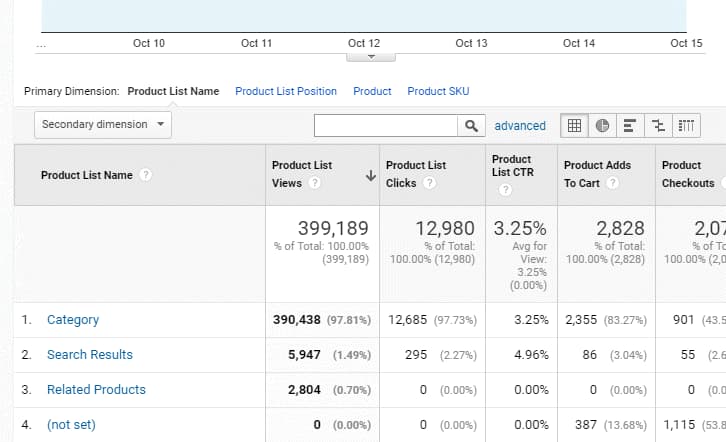
You can also track the customer’s journey from the product page to the checkout page. Using this data, you can find which products are performing really well and what other product pages can be improved. The related products data can also help you sell more products by combining products together as a single package and selling them (upselling).
How to set up enhanced eCommerce tracking for WooCommerce
The best way to set up enhanced eCommerce tracking for WooCommerce would be with the help of MonsterInsights Google Analytics WordPress plugin. MonsterInsights is basically a free WordPress plugin but to enable the enhanced eCommerce feature, you need to be on their Pro or Agency plan.
I have already covered its features, pricing, and support (including its pros and cons) in my detailed MonsterInsights review. You might want to check it out to get a better understanding of what the plugin offers. By the way, I have also included step-by-step instructions to install and set up MonsterInsights along with my review. So, I recommend you to have a look at it before continuing further as I won’t be sharing detailed steps on how to install and configure the plugin below.
Install and configure MonsterInsights
Enable eCommerce tracking
Open Google Analytics admin
Open E-Commerce Settings
Enable eCommerce reporting
Enable MonsterInsights enhanced eCommerce
That’s it. You have now successfully enabled enhanced eCommerce in WordPress with MonsterInsights. From now, you can view all your store’s important data right from your WordPress dashboard instead of visiting Google Analytics every time.
Conclusion
I hope you found this post really helpful and enjoyed the read. If you did, please consider sharing this post with your friends and fellow bloggers on social media so that they can also find a way to easily add Google Analytics enhanced eCommerce for WooCommerce.
Discover more from Antony Agnel
Subscribe to get the latest posts sent to your email.
 Antony Agnel
For Add Google Analytics your blog is really helpful. Thanks!